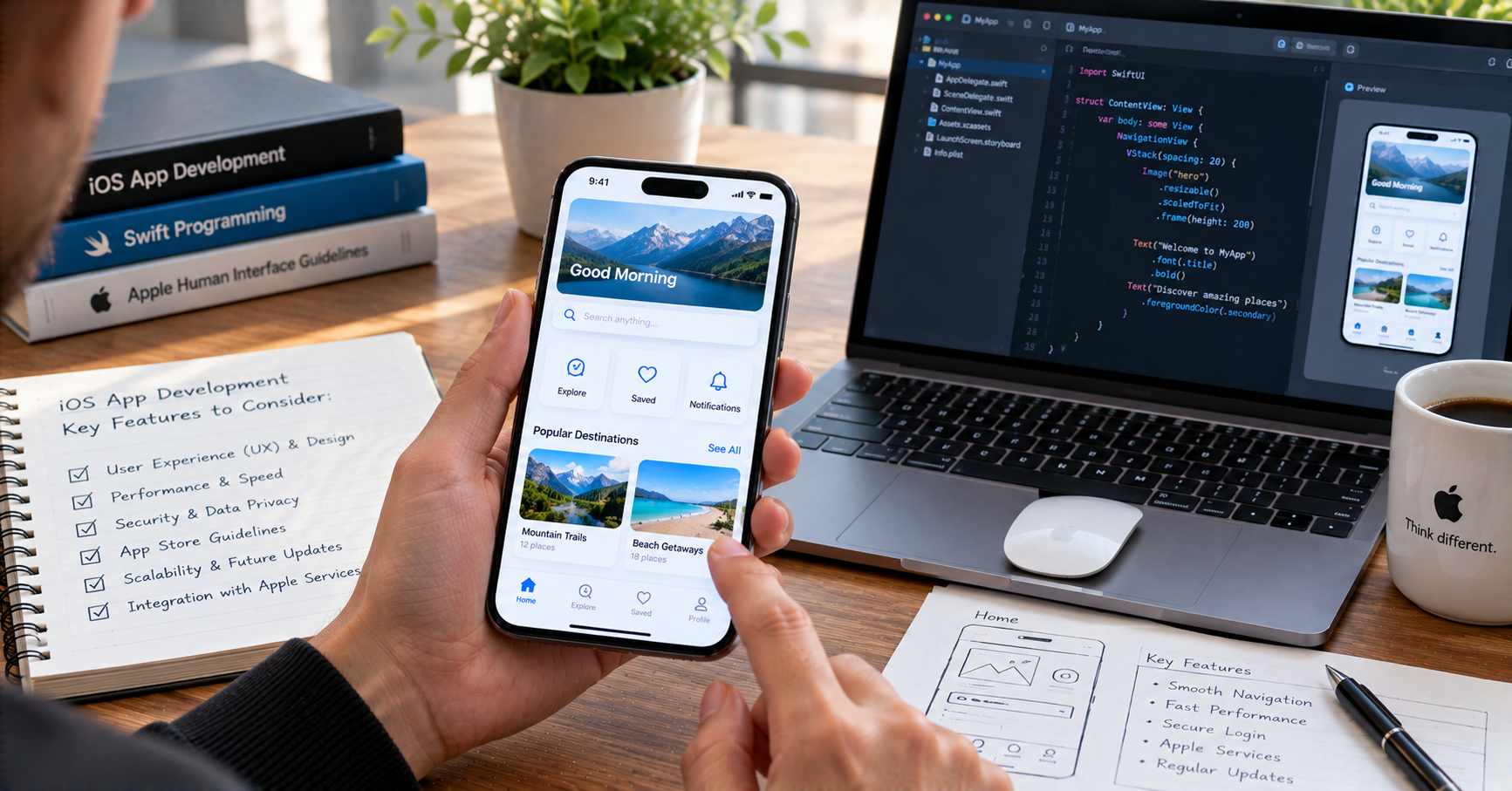
Most iOS app failures have less to do with bad code and more to do with bad decisions made before a single line was written. A team builds out everything on their feature list, launches, and then discovers users aren’t engaging with half of what was built, the things they actually want aren’t there, and the performance on older iPhones is rough enough to generate negative reviews before any real traction develops. This pattern repeats constantly in the App Store, and it’s the core reason why an experienced iOS app development company spends serious time in discovery and planning before touching Xcode — because the features you choose, how you prioritize them, and how deeply you integrate them with iOS-native capabilities determines whether the app earns a place on someone’s home screen or gets deleted after a week.
Building for iOS specifically isn’t the same as building a generic mobile app that happens to land on Apple devices. Apple’s platform has design conventions, user expectations, technical capabilities, and quality standards that shape what a genuinely good iOS experience looks and feels like. Understanding these before scoping a project changes what gets built and often changes it significantly.
User Authentication and Security From the First Screen
The first thing most users encounter in an iOS app is some form of authentication, and iOS provides tools for this that are so good there’s rarely a reason to build something from scratch. Face ID and Touch ID — accessed through the Local Authentication framework — give developers biometric authentication that users already trust and use daily across their device. An app that implements biometric login correctly will consistently outperform one that only offers email-and-password in terms of session retention and user satisfaction, simply because the friction of logging in drops to near zero.
Beyond biometric login, iOS supports Sign in with Apple, which Apple requires for any app that offers other social login options. This isn’t just a compliance checkbox — users who choose it get a clean, private authentication flow with the option to use a relay email address, and developers get verified user authentication without handling credentials. Building this properly from day one avoids the scramble of adding it retroactively when App Store review flags it.
Keychain Services handles secure credential storage, and using it correctly rather than storing any sensitive data in UserDefaults or plain text is a baseline requirement rather than an advanced feature. Getting the security layer right at the start is considerably cheaper than fixing a data exposure incident later.
Onboarding That Teaches Without Annoying
App onboarding is the moment with the highest leverage and the shortest window. Users who don’t understand the core value of an app within the first two or three minutes delete it and don’t come back. Users who get it quickly enough to be useful stick around long enough to become habitual.
The mistake most teams make with onboarding is building too much of it. A five-screen walkthrough that explains every feature before the user has done anything is almost always worse than a shorter path to the first moment of actual value, with contextual guidance appearing when it’s relevant rather than front-loaded. iOS provides native mechanisms — tooltips, focus rings, permission request dialogs tied to specific actions — that make contextual onboarding easier to build well than most teams expect.
Permission requests deserve specific attention here. iOS requires explicit user permission for camera, microphone, location, notifications, contacts, and several other capabilities. When and how these requests appear has a measurable effect on grant rates, which directly affects how many users actually have access to the features that depend on those permissions. Requesting location permission when the user hasn’t yet encountered a feature that needs it — before they’ve seen why it matters — produces lower grant rates and more suspicion than requesting it at the moment a location-dependent feature is first encountered. Every permission in the app should have a clear, contextual prompt and a compelling reason in plain language.
Push Notifications: The Channel Worth Getting Right
Push notifications are one of the highest-performing engagement channels available in a mobile app and one of the most frequently misused. An app that sends notifications users find useful maintains the channel. An app that sends too many, or sends them at the wrong moments, or sends generic content that feels like spam, trains users to turn notifications off, which closes that channel permanently for that user.
The iOS notification system has grown considerably more nuanced with the addition of notification categories, actionable notifications, Focus mode integration, and notification summaries. Building notifications to take advantage of these capabilities — allowing users to take action directly from the notification, grouping related notifications intelligently, respecting system-level Focus settings — produces a meaningfully better user experience than a basic implementation that just sends a title and body.
Time-sensitive notifications, which appear even in Focus modes, should be used sparingly for genuinely time-sensitive content. Using this capability for promotional content that isn’t actually urgent burns user trust in a way that’s hard to recover from.
Performance on the Full Range of Devices
Apple maintains a long support window for iOS devices, which means an app targeting current iOS versions will run on hardware spanning several years of iPhone models. An app that performs well on the latest iPhone Pro but stutters on an iPhone 12 is an app with a significant real-world user experience problem, because a meaningful portion of any iOS user base is always running on hardware that’s two or three generations old.
Performance optimization for iOS involves several specific areas. Memory management matters because iOS will terminate apps that exceed memory limits without warning, which users experience as crashes. Image loading and caching needs to be handled correctly — UIKit and SwiftUI both have opinions about this that, when followed, produce reliable performance, and when ignored produce the stuttery scrolling that generates negative reviews. Network handling should assume variable connectivity rather than reliable WiFi, with appropriate loading states, error handling, and offline behavior rather than an empty screen when a request fails.
Battery usage is another performance dimension that iOS users notice and care about. Background processes that drain battery unusually get flagged in system settings, and users who notice an app draining their battery will delete it regardless of how much they like what it does. Background tasks should use the Background Tasks framework correctly, respecting system limits on background execution.
Offline Capability and Data Persistence
The assumption that an iOS app always has reliable connectivity is wrong for a meaningful portion of real-world usage. Subway commutes, rural areas, airplane mode, weak signals in buildings — these aren’t edge cases for most users. An app that breaks entirely when offline creates frustration in scenarios that happen regularly.
Core Data and SwiftData are Apple’s frameworks for local data persistence and work well for apps that need to store structured data locally. CloudKit integrates iCloud sync for cross-device data availability. The combination of local storage with sync gives users a seamless experience where the app works offline and updates when connectivity returns, rather than either requiring constant connectivity or creating manual sync headaches.
What offline capability looks like specifically depends on the app. A reading app should cache content for offline access. A task management app should queue actions taken offline and sync them when connected. A food delivery app might disable ordering when offline while still allowing menu browsing. The right approach depends on what users will reasonably want to do when connectivity isn’t available.
Accessibility as a Design Requirement, Not an Afterthought
iOS has the most sophisticated built-in accessibility framework of any mobile platform, which creates both opportunity and responsibility. VoiceOver, Dynamic Type, Reduce Motion, increased contrast support, and Switch Control are all system-level accessibility features that iOS apps can support with varying levels of completeness.
Building accessibility in from the start is considerably easier than retrofitting it. Labeling interactive elements correctly for VoiceOver, supporting Dynamic Type so text scales with user preferences, providing alternatives for motion-dependent interactions, maintaining sufficient color contrast ratios — these aren’t technically complex, but they require consistent attention throughout the design and development process rather than a last-pass audit before launch.
The practical business case for accessibility beyond compliance is straightforward: users with accessibility needs are a real portion of the user base, App Store reviews explicitly call out accessibility failures, and Apple’s app review process increasingly checks for baseline accessibility compliance. The apps that do this well also tend to have cleaner code architecture as a side effect, because the accessibility requirements push toward better semantic structure throughout.
Apple Pay and In-App Purchases
Any iOS app with a transaction flow should consider Apple Pay integration seriously. Apple Pay removes most of the friction from payment by letting users authenticate a purchase with Face ID or Touch ID rather than entering card details — a difference that measurably improves conversion on payment screens. For physical goods and services, implementing Apple Pay alongside other payment methods is generally straightforward and worth the implementation time for the conversion improvement alone.
Apps that sell digital content, features, or subscriptions within the app are required by Apple to use In-App Purchases for those transactions. This isn’t optional — it’s enforced at app review, and apps that try to route around it get rejected. The StoreKit framework handles IAP implementation, and StoreKit 2 significantly improved the developer experience with modern Swift APIs. Subscription management, trial periods, promotional offers, and family sharing all have specific StoreKit implementations that, when used correctly, give users the subscription management experience they expect from an iOS app.
App Clips for Lightweight Discovery
App Clips are a relatively underused iOS feature that most teams don’t consider but that can genuinely matter for discovery and acquisition. An App Clip is a small, fast-loading fraction of an app that can be triggered through NFC tags, QR codes, Safari, Maps, or Messages, and runs without requiring the user to first find and download the full app. It’s designed for transactional use cases — parking payment, restaurant ordering, event check-in, bike share pickup — where a user needs to do one specific thing immediately.
For businesses with a physical presence or a use case that triggers at specific locations or moments, App Clips can meaningfully reduce the barrier to first engagement. A user who has a good experience with an App Clip gets prompted to download the full app, which is a warmer conversion than cold App Store discovery.
Testing Strategy Across the Device Ecosystem
iOS testing is more controlled than Android testing — the range of screen sizes and hardware configurations is narrower — but it still requires a thoughtful strategy rather than “it works on my iPhone.” Testing should cover the full range of supported device sizes, from smaller SE-class screens to larger Max models, across both the current iOS version and the previous one at minimum.
XCTest handles unit and UI testing, and building a meaningful test suite during development rather than after is consistently faster than the alternative. TestFlight makes beta testing with real users straightforward and well-integrated with the App Store release process. Automated testing through Xcode Cloud or external CI pipelines catches regressions before they reach users.
Planning Your Budget Realistically
iOS App Development Cost varies significantly based on the depth of platform integration being built. An app that uses basic SwiftUI views, standard navigation patterns, and minimal system integration costs considerably less than one implementing custom AR experiences, advanced Core ML features, full Apple Watch companion support, and extensive HealthKit integration. The features in this list aren’t free — biometric auth is relatively cheap to implement, a well-instrumented offline sync system with CloudKit takes real time, and payment processing with subscriptions has its own complexity.
The more useful framing than a single number is understanding which features are non-negotiable for the core value proposition, which are table stakes for the category, and which are differentiating but optional for the first version. This prioritization conversation is where the most important scope decisions happen, and teams that skip it tend to build either too much or the wrong things.
App Store Optimization From Day One
The App Store is where the majority of organic iOS app discovery happens, and treating ASO as an afterthought produces predictably poor results. App name, subtitle, keyword field, description, screenshots, preview video, and ratings all influence search ranking and conversion from search impression to download.
Screenshots in particular are underinvested in by most teams — they’re the primary conversion element on the App Store listing page, and generic or low-quality screenshots lose potential downloads to competitors with more compelling visual presentation. The screenshot strategy should be developed alongside the product, not assembled from whatever’s convenient after launch.
Final Thoughts
The features that matter most for an iOS app aren’t just a list to check off — they’re decisions about what kind of experience the app will be and what kind of relationship it will build with users. Apps that feel genuinely iOS-native, that use biometric auth and Apple Pay and contextual permissions and accessible design not because they have to but because doing so makes the experience better, consistently perform better in user retention and App Store ratings than apps that treat the platform as just a deployment target. The investment in getting these decisions right before the first sprint begins pays off in a product that feels like it belongs on an iPhone rather than one that happens to run on one.